Image text basics
Can we edit picture text? Here is what actually changes
Can we edit picture text? Yes, in many cases. Edit text in image workflows replace visible lettering while rebuilding the covered background, but the result depends on image quality, layout, and how much of the original design remains.
How it works
A practical edit text in image process separates the visible lettering from the surrounding design, creates a replacement, and checks whether the new wording fits naturally.
-
1
Identify the lettering
Start with a clear image and specify the words that should change. Text that is large, horizontal, and strongly contrasted is usually easier to isolate than tiny, curved, or partially hidden type.
-
2
Rebuild the covered area
The editing process removes or masks the old wording, then reconstructs the background behind it. A plain wall, flat color, or simple package surface is easier to restore than a detailed photograph.
-
3
Blend the replacement
The new wording is positioned, scaled, and styled to match the surrounding design. Review spacing, contrast, perspective, and edges before treating the edit text in image result as finished.
-
4
Check the final image
Zoom in on letter edges and inspect nearby objects, shadows, and repeating patterns. A second pass often catches small artifacts that are hard to see at the original viewing size.
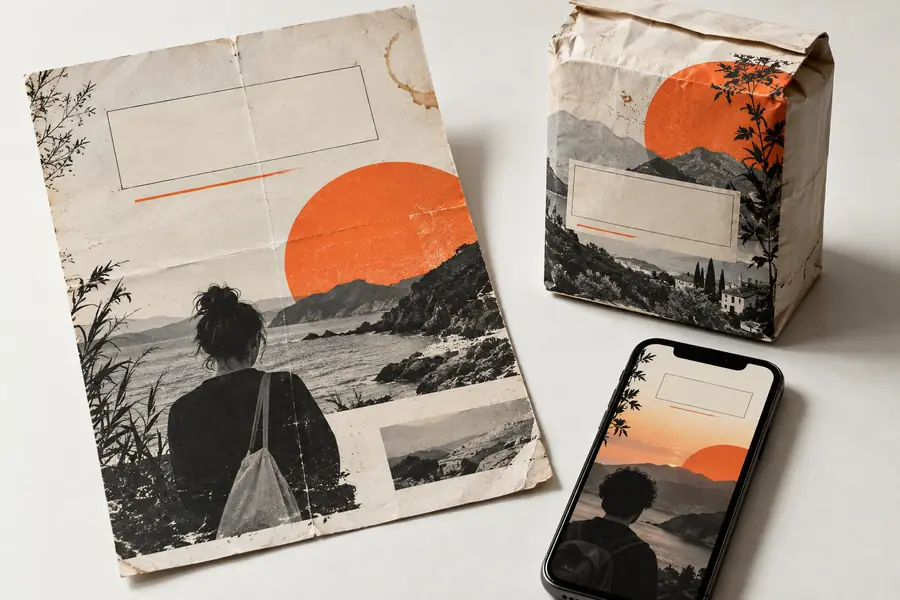
- Before
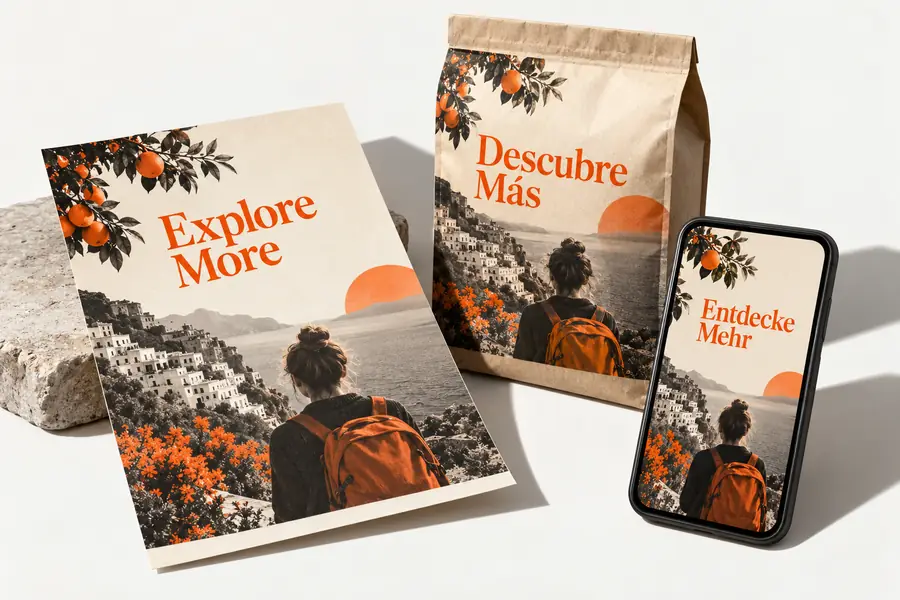
- After
The goal is a believable replacement, not recovery of hidden original pixels. When the source contains enough visual context, edit text in image results can preserve the composition while changing the message.
Can and cannot do
Editing picture text is useful, but it is not magic recovery. These limits explain why some edits look seamless while others need a workaround or a redesigned layer.
-
It cannot recover covered letters perfectly
If the original text is blurred, cropped, compressed, or painted over, the exact font and wording may not be recoverable from pixels alone.
WorkaroundUse the visible style as a reference and recreate the wording with a close typeface, matching color, scale, and spacing.
-
It cannot guarantee the same font
A photograph may contain a proprietary, modified, or hand-lettered typeface that is not identifiable from the image.
WorkaroundChoose the closest available font, then adjust weight, tracking, width, and baseline to make the replacement feel consistent.
-
It cannot preserve every background detail
Removing large lettering can expose texture, objects, reflections, or shadows that were never visible in the source image.
WorkaroundUse a clean crop, a nearby texture sample, or a redesigned background when reconstruction becomes distracting.
-
It cannot fix a poor source indefinitely
Low resolution, heavy compression, glare, perspective, and motion blur reduce the precision of any edit text in image attempt.
WorkaroundWork from the largest original available and export the finished image without unnecessary repeated compression.
Who uses it
The best approach depends on whether the goal is a quick correction or a controlled design change. This comparison shows where edit text in image is most useful and when a source file is the better starting point.
Editing a flattened image
Editing the original design
Best starting material
Editing a flattened image
A JPG, PNG, screenshot, scan, or photographed sign
Editing the original design
A layered design file with editable type
Typical goal
Editing a flattened image
Change a visible label, date, price, caption, or sign
Editing the original design
Revise copy while preserving the original layout
Font access
Editing a flattened image
Estimated from the pixels or approximated visually
Editing the original design
Usually retained in the text layer or design system
Background handling
Editing a flattened image
Reconstructed from nearby pixels and visual context
Editing the original design
Already present beneath the editable text
Precision
Editing a flattened image
Depends on resolution, contrast, perspective, and texture
Editing the original design
Usually higher because the text and background remain separate
Useful for
Editing a flattened image
Screenshots, archival images, mockups, and quick corrections
Editing the original design
Campaigns, templates, packaging files, and repeated revisions
Main risk
Editing a flattened image
Visible artifacts around letters or mismatched typography
Editing the original design
Missing fonts, linked assets, or altered layout settings
Recommended result
Editing a flattened image
A carefully reviewed replacement image
Editing the original design
A revised source file plus a fresh export
Ready to change wording in an image?
Bring the image and the intended replacement into the workflow, then review the result at full size. Edit text in image tasks work best when the requested wording is specific and the source image is clear enough to show its surrounding design.
Edit image text- State the exact replacement wording
- Use the clearest original image available
- Check typography and background edges before sharing
FAQ
A concise answer to the central question, with practical context for deciding whether an image edit is suitable.
Yes. You can replace visible wording in many pictures by removing or covering the existing letters and rebuilding the area behind them. The quality of the edit depends on the image resolution, background detail, text placement, and how closely the replacement needs to match the original.
Often, yes. A flattened JPG, PNG, screenshot, or photograph can be used as the starting point for an edit text in image task. Without the original file, however, the font, layers, and hidden background must be estimated or reconstructed.
Sometimes, but not always. Matching is easier when the lettering is clear and uses a common typeface; custom lettering, distortion, glare, and low resolution make an exact match unlikely. A close font with adjusted size, weight, spacing, and color can still produce a convincing result.
Yes, but complex scenes require more care. Text over a plain surface is easier to replace than text crossing reflections, textures, objects, or perspective lines. For difficult images, a redesigned label or carefully rebuilt background may look more natural than a direct edit.