Screenshot editing guide

How to edit screenshot text without disturbing the layout

A screenshot is a flat image, so its words usually cannot be selected and retyped. To change them, you must cover or remove the original lettering, add replacement text, and inspect the surrounding pixels. This guide explains how to edit text in image files while preserving a believable, readable result.

Review the result before sharing
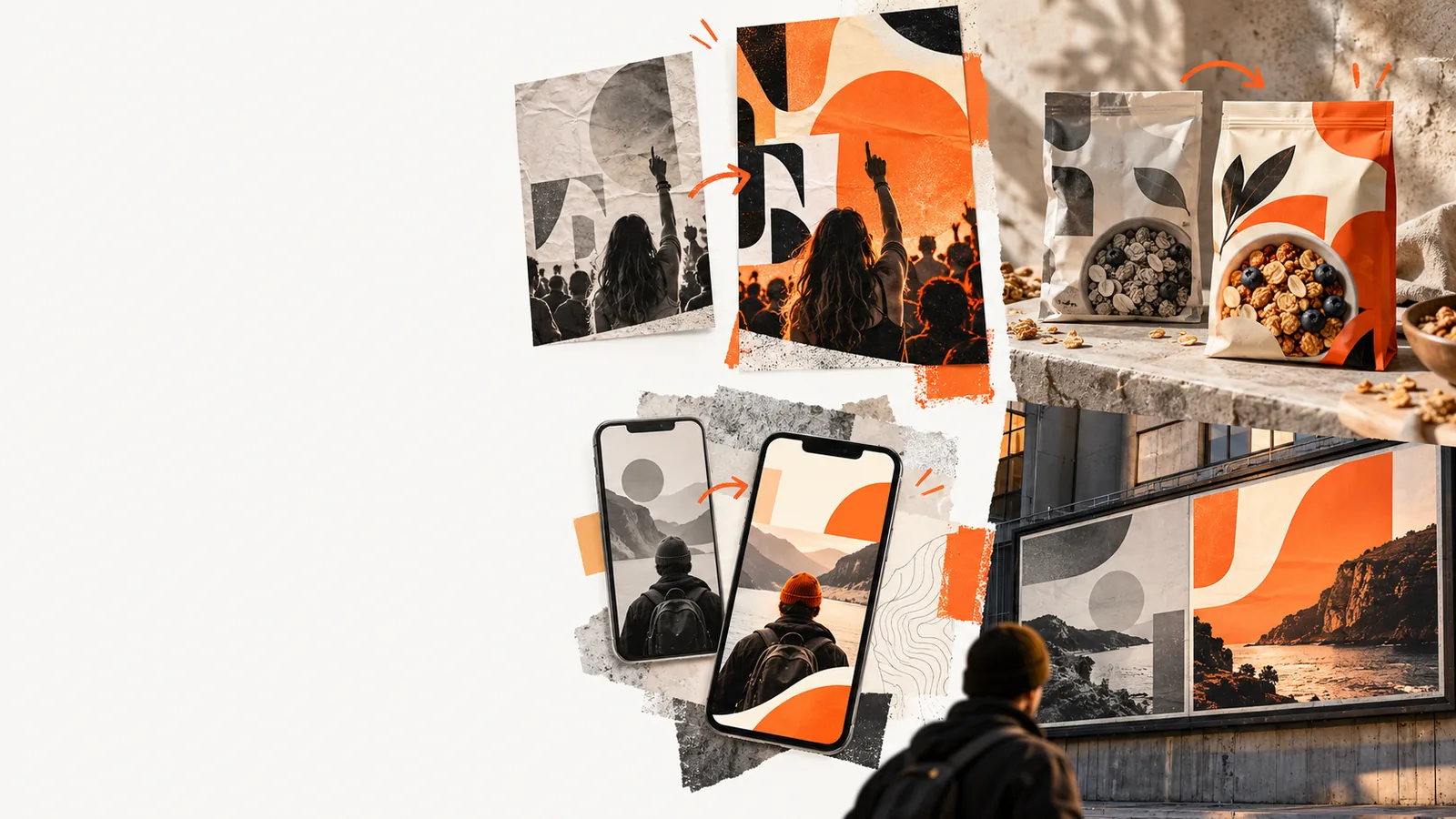
Image-editing example showing text changed within an existing visual

Start with the original screenshot at its full available resolution. Write down the exact replacement wording, and keep an untouched copy so you can compare the final image against it.

numbered steps

Work on a copy, change only the necessary area, and compare the result with the original before using it elsewhere.

  1. 1

    Identify the text and its background

    Zoom in on the words you need to replace. Note whether they sit on a solid colour, a gradient, a photograph, or a detailed interface element. Record the exact new wording and check that it fits the available space; a longer label may need a smaller size or a wider area. If the screenshot shows a real conversation, receipt, or record, retain the original and clearly identify any edited version.

  2. 2

    Remove or cover the old lettering

    In your chosen image editor, isolate the smallest practical region around the original text. On a plain background, a matching colour patch may be enough. On textured areas, use a suitable repair or inpainting method, then inspect nearby borders, icons, and shadows. Do not erase so broadly that you flatten a card edge or break a line running behind the words.

  3. 3

    Add the replacement text

    Place the new wording where the old text sat. Match its approximate typeface, weight, size, colour, alignment, and line spacing. Use neighbouring labels as visual references rather than guessing from memory. Check that descenders and punctuation are not clipped, especially near buttons and narrow navigation bars. If an exact font is unavailable, prioritise legibility and consistent spacing over a forced match.

  4. 4

    Inspect and save the result

    Compare the edited screenshot beside the untouched copy at normal viewing size, then zoom in to inspect the repair. Look for ghost letters, repeated texture, uneven baselines, and altered interface details. Save a separate output so the original remains available. If you will share the image publicly, disclose material edits rather than presenting changed text as an unaltered record.
common errors and fixes

Most visible mistakes come from repairing too large an area or matching the letters without matching the interface around them.

Designer checking a label

The replacement fits, but its weight and letter spacing differ from nearby UI text. Compare the shapes of repeated letters, then adjust size and tracking before moving the label again.

The wording reads as part of the same interface instead of a separate overlay.

edit text in image with same font

Writer revising a guide

A pale rectangle remains where the old instructions were covered. Sample the surrounding colour at several points, and check whether the panel has a subtle gradient or shadow.

The repaired area blends in when the screenshot appears at its intended size.

edit text in image online

Mobile user updating a mockup

The new caption looks sharp, but a nearby icon or rounded corner has been softened. Revert that area and make a tighter selection around the letters.

The interface keeps its original edges while the intended wording changes.

Can I edit text in a photo on iPhone?

Presenter correcting a slide

The edited screenshot looks fine when enlarged but becomes difficult to read on a slide. Test it at presentation size and shorten the wording if necessary.

Viewers can read the correction without mistaking it for a claim that the original screen said something else.

edit text in image examples online

advanced tips

Treat the screenshot as both text and interface: a convincing change preserves the visual rules that make the screen readable.

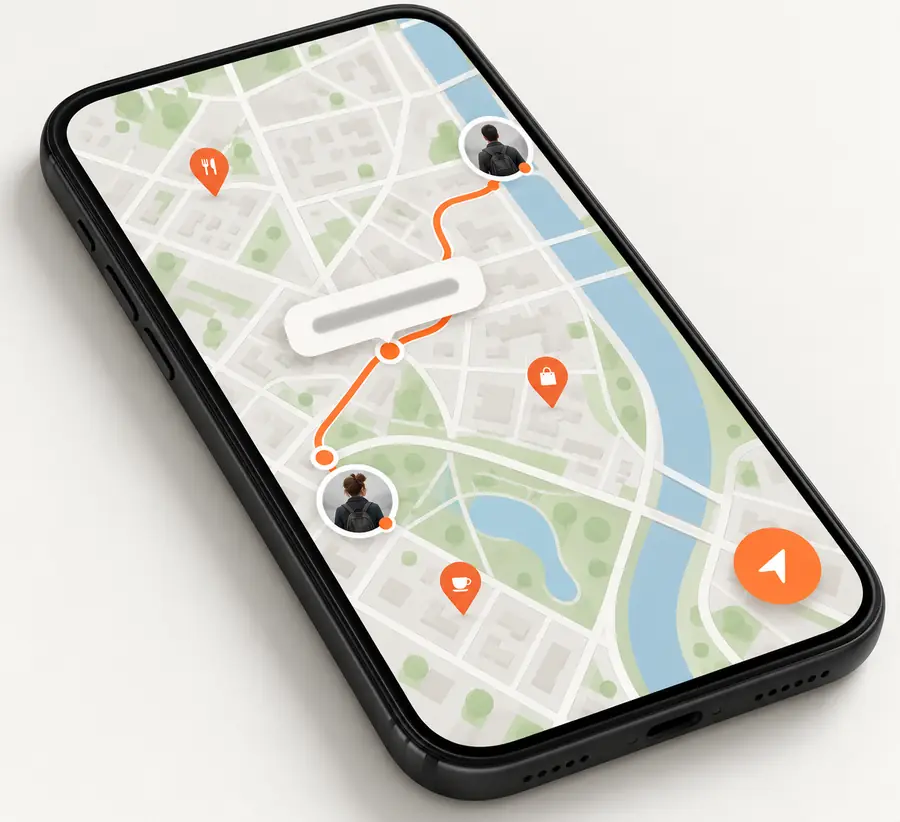
  • Original map label
  • Revised map label

For small UI text, compare the before and after images at both full size and the size at which someone will actually see them. Watch for the baseline, padding from nearby icons, and whether the new words wrap differently. If the background contains a map line or fine texture, repair that detail before adding text; an intact label over a broken background still looks edited. When accuracy matters more than appearance, annotate the screenshot instead of replacing its contents.

Mobile map screenshot before a label is revised
Mobile map screenshot with a revised label

Ready to revise your screenshot?

Describe the wording you want changed and the details that should stay untouched. An image-editing result still needs your review: compare it with the original, check the small details, and keep the source file if the screenshot documents a real event.

Edit my screenshot
  • Specify the exact replacement wording
  • Name nearby elements that must remain unchanged
  • Inspect the result before sharing

tutorial FAQ

Usually not. A screenshot stores the displayed words as image pixels, not as an editable text layer. If you still have the original document or design, changing that source and taking a new screenshot is often cleaner.

Repair only the area occupied by the old letters, then inspect the surrounding colour, texture, and edges. A flat colour patch works best on a genuinely uniform background; gradients and detailed images require more careful reconstruction. Check the result at normal viewing size as well as close up.

Compare nearby letters to find a typeface with similar shapes and weight, then adjust its size and spacing. An exact match may not be possible, especially when the screenshot is compressed or the text was rendered at a small size. A clear, consistently aligned substitute is better than a distorted imitation.

The screenshot may have been enlarged, compressed, or saved repeatedly. Work from the highest-resolution original you have, and judge the new lettering at the image’s intended display size. Avoid repeatedly resizing the finished screenshot.

Do not pass an altered screenshot off as an unmodified record. Keep the original, and label an edited version clearly if it is needed for a demonstration or correction. For factual records, a visible annotation is often more transparent than replacing the original words.

Edit an image
Edit an image